
Your Unlimited Guide to
Siri Voice Command
Discover, explore and master the best Siri commands for iPhone, iPad, Mac, Apple Watch, and more.
Browse by Category:-
MUSIC
| Siri Command | Response |
|---|---|
| Search Taylor Swift in iTunes Store. | Returns music search results for Taylor Swift. |
| Search Ed Sheeran music. | Returns music search results for Ed Sheeran. |
| Play Bohemian Rhapsody. | Plays Bohemian Rhapsody by Queen (if available). |
| Play Shape of You by Ed Sheeran. | Plays Shape of You (if available). |
| Set playback to double speed. | Changes music playback to 2.0× speed. |
| Set playback to half speed. | Changes music playback to 0.5× speed. |
| Set playback to normal speed. | Changes music playback to 1.0× speed. |
| Set playback to one-point-five speed. | Changes music playback to 1.5× speed. |
| Play something random. | Creates a shuffled playlist and starts playback. |
| Shuffle my music. | Creates a shuffled playlist and starts playback. |
| Mix up the songs. | Enables shuffle mode. |
| Turn shuffle on. | Enables shuffle mode. |
| Turn shuffle off. | Disables shuffle mode. |
| Play pop music. | Plays songs tagged as Pop from your Music Library. |
| Play classical music. | Plays songs tagged as Classical from your Music Library. |
| Skip to the next song. | Plays the next song in the queue. |
| Next track. | Plays the next song in the queue. |
| Go back to the previous song. | Plays the previous song in the queue. |
| Replay the last track. | Plays the previous song in the queue. |
| Jump ahead 10 seconds. | Skips forward 10 seconds and resumes playback. |
| Fast forward 10 seconds. | Skips forward 10 seconds and resumes playback. |
| Go back 20 seconds. | Rewinds 20 seconds and resumes playback. |
| Rewind 20 seconds. | Rewinds 20 seconds and resumes playback. |
| Go to 2 minutes and 45 seconds. | Jumps to exactly 2:45 and resumes playback. |
| Skip to 2 minutes and 45 seconds. | Jumps to exactly 2:45 and resumes playback. |
| Go to 150 seconds. | Jumps to exactly 2:30 and resumes playback. |
| Skip to 150 seconds. | Jumps to exactly 2:30 and resumes playback. |
WEB AND YOUTUBE SEARCH SIRI COMMANDS
| Siri Command | Response |
|---|---|
| Search DuckDuckGo for running shoes. | Searches DuckDuckGo and displays results for running shoes. |
| Bing search bicycles. | Opens Bing and searches for bicycles. |
| Web Search dogs. | Shows Google search results related to dogs. |
| Searches Yahoo for silly straws. | Opens Yahoo search results for silly straws. |
| YouTube Search cats. | Displays YouTube results for cat videos and related content. |
| Bing search dog food. | Launches Bing with search results for dog food. |
WALLET SIRI COMMANDS
| Siri Command | Response |
|---|---|
| Show my Wallet. | Opens the Wallet app and displays your saved cards and passes. |
| Open Wallet. | Launches the Wallet app. |
| Show my payment cards. | Opens Wallet and displays your saved payment cards. |
| Open Apple Wallet. | Opens the Apple Wallet app. |
| Show my boarding passes. | Displays available boarding passes saved in Wallet. |
| Show my transit cards. | Opens Wallet and shows your saved transit passes. |
| Show my event tickets. | Displays event tickets stored in Wallet. |
| Show my loyalty cards. | Opens Wallet and shows your saved loyalty or rewards cards. |
| Show my movie tickets. | Displays movie tickets available in Wallet. |
| Show my passes. | Opens Wallet and displays all saved passes. |
| Open my travel passes. | Shows travel-related passes stored in Wallet. |
| View my saved cards. | Opens Wallet and displays your saved debit and credit cards. |
NOTIFICATION
Note: Silent Mode must be turned off for Siri to read notifications or messages aloud.
| Siri Command | Response |
|---|---|
| Play voicemails. | Plays your saved voicemail messages through the Phone app. |
| Read all notifications. | Siri asks whether you’d like to hear your recent notifications. |
| Check voicemail. | Opens your voicemail and reads available messages when supported. |
| Do I have missed calls? | Checks your call history and tells you how many calls you missed. |
| Read voicemails. | Retrieves your voicemail messages and reads them aloud. |
CONTACTS SIRI COMMANDS
| Siri Command | Response |
|---|---|
| Call John Smith. | Starts a phone call to John Smith if the contact is saved. |
| Call my wife. | Calls the contact linked to your wife relationship. |
| FaceTime Emily. | Starts a FaceTime call with Emily. |
| FaceTime Audio David. | Begins a FaceTime audio call with David. |
| Show my contacts. | Opens the Contacts app and displays your contact list. |
| Open Contacts. | Launches the Contacts app. |
| Search for Sarah. | Finds and displays Sarah’s contact information. |
| Find Michael’s contact. | Searches your contacts for Michael. |
| Show John Doe’s phone number. | Displays John Doe’s saved phone numbers. |
| What’s Emma’s mobile number? | Reads or displays Emma’s mobile number if available. |
| Show Lisa’s email address. | Displays Lisa’s saved email address. |
| Text Alex. | Opens Messages and prepares a conversation with Alex. |
| Email Chris. | Opens Mail and starts a new email to Chris. |
| Share John’s contact. | Opens the share options for John’s contact card. |
| Show my contact card. | Displays your personal contact card. |
| Edit my contact card. | Opens your contact card for editing. |
| Add a new contact. | Starts the process of creating a new contact. |
| Create a contact for Olivia. | Begins adding a new contact named Olivia. |
| Delete Robert’s contact. | Asks for confirmation before deleting Robert’s contact. |
| Who is my emergency contact? | Displays the contact you’ve set as your emergency contact, if available. |
FUN SIRI COMMAND
| Siri Command | Response |
|---|---|
| Tell me a joke. | Shares a random joke. |
| Beatbox for me. | Performs a playful beatboxing sound. |
| Sing me a song. | Responds with a fun singing-related reply. |
| Tell me a story. | Tells a short, often humorous story. |
| Flip a coin. | Flips a virtual coin and announces the result. |
| Roll a die. | Rolls a six-sided die and displays the number. |
| Roll two dice. | Rolls two virtual dice and shows both results. |
| Pick a random number between 1 and 100. | Generates a random number within the selected range. |
| What’s your favourite colour? | Gives one of several playful answers. |
| Are you human? | Replies with a witty explanation about being a virtual assistant. |
| Who made you? | Explains that it was created by Apple. |
| Do you love me? | Responds with a light-hearted answer. |
| Will you marry me? | Gives a humorous or playful reply. |
| What is the meaning of life? | Offers a clever or philosophical response. |
| Tell me something interesting. | Shares a random fact. |
| Surprise me. | Provides a joke, fact, or another fun response. |
| Make me laugh. | Tells a joke or makes a funny comment. |
| What’s zero divided by zero? | Gives a well-known humorous explanation. |
| Do you know Alexa? | Responds with a playful comment about another assistant. |
| Do you know Google Assistant? | Gives a light-hearted response about another voice assistant. |
| Knock knock. | Starts a classic knock-knock joke. |
| Read me a poem. | Recites a short poem or verse. |
| Tell me a riddle. | Asks a riddle for you to solve. |
| What’s the best phone? | Gives a humorous Apple-themed answer. |
| Can you rap? | Performs a short, playful rap. |
| Happy Birthday! | Thanks you with a cheerful message. |
| Merry Christmas! | Wishes you a Merry Christmas. |
| Trick or treat! | Responds with a Halloween-themed message. |
| Good morning! | Greets you and may share helpful information for the day. |
| Good night! | Wishes you a restful night’s sleep. |
NOTES SIRI COMMAND
NOTE: Silent Mode must be switched off for audio responses.
| Siri Command | Response |
|---|---|
| Show my notes. | Shows your recently created or edited notes. |
| Note that the sky is blue. | Saves a new note with the text “The sky is blue.” |
| Read my notes. | Opens your recent notes, reads the latest one aloud, and offers additional options. |
| Make a note. | Asks what you’d like to save in a new note. |
| Show notes. | Opens the Notes app and displays your latest notes. |
| Make a note that the grass is green. | Adds a new note with “The grass is green.” |
| Note that the ocean is deep. | Creates a note containing “The ocean is deep.” |
TRANSLATION SIRI COMMANDS
| Siri Command | Response |
|---|---|
| How do you say Happy Birthday in Chinese? | Translates “Happy Birthday” into Chinese and displays the result. |
| How do you say Germany in German? | Provides the German name for Germany. |
| How do you say hello in German? | Displays the German translation for “hello.” |
| How do you say Happy Birthday in Cantonese? | Indicates that Cantonese translation isn’t currently supported. |
| How do you say twenty-five in Greek? | Converts “twenty-five” into Greek. |
| How do you say wonderful in French? | Shows the French equivalent of “wonderful.” |
WORD & TRIVIA SIRI COMMANDS
| Siri Command | Response |
|---|---|
| Show planes above me. | Opens a live map showing nearby aircraft when supported. |
| Words that rhyme with grace. | Displays words that rhyme with grace. |
| Tell me about Apple TV. | Displays information about Apple TV and related products. |
| Fruits that start with the letter T. | Shows fruits that begin with T and can read the list aloud. |
| World’s tallest person. | Displays details about the tallest recorded person. |
| What song is this? | Listens to nearby music and tries to identify the song. |
| Define geometry. | Shows the dictionary definition of geometry. |
| Airport code for Heathrow. | Displays the airport’s IATA code. |
| Words that begin with S and end with T. | Displays words that start with S and finish with T. |
| How many syllables in Mississippi? | Displays the number of syllables in Mississippi. |
| Where can I buy some headphones? | Suggests Apple products or nearby shopping options. |
| World’s oldest person. | Shows information about the world’s oldest recorded person. |
| Words that start with the letter G. | Displays a selection of words beginning with G. |
| Tell me about the iPod touch. | Opens information about the iPod touch from Apple. |
| What is the ceiling for an SR-71? | Shows the aircraft’s maximum operating altitude. |
| Words that rhyme with hat. | Shows a list of words that rhyme with hat. |
| Spell Mississippi. | Spells Mississippi aloud and on screen. Silent Mode must be off for audio. |
| Words that begin with the letter Q. | Shows a list of words that start with Q. |
| How many letters in Mississippi? | Counts and displays the number of letters in Mississippi. |
| World’s shortest person. | Shows information about the shortest recorded person. |
| Words that begin with A and end with S. | Shows words starting with A and ending with S. |
| Fruits that start with the letter A. | Displays fruits beginning with A and may read them aloud if Silent Mode is off. |
| Words that start with Q and end with R. | Lists words that begin with Q and end with R. |
| How many characters in Mississippi? | Shows the total character count for Mississippi. |
| What is the ceiling for a Piper Cherokee? | Displays the service ceiling for the aircraft. |
| Vegetables that start with the letter T. | Lists vegetables starting with T and provides voice output when available. |
SCIENCE FACTS SIRI COMMANDS
| Siri Command | Response |
|---|---|
| Distance between Earth and the Sun. | Shows the average distance between Earth and the Sun, with a visual chart when available. |
| Chemical formula for glucose. | Shows the chemical formula of glucose. |
| What is the atomic number of calcium? | Shows calcium’s atomic number from the periodic table. |
| Ask Wikipedia about copper sulfate. | Displays the Wikipedia article summary for copper sulfate. |
| Symbol for samarium. | Displays the chemical symbol for samarium. |
| Show structure of benzene. | Displays the molecular structure of benzene. |
| What is the density of aluminium? | Provides the density value for aluminium. |
| Distance between Earth and Mars. | Calculates and displays the approximate distance between Earth and Mars. |
| Chemical structure of nicotine. | Displays the molecular structure of nicotine. |
| Ask Wolfram Alpha about copper sulfate. | Shows information about copper sulfate from Wolfram Alpha. |
| What is the melting point of potassium? | Displays the melting point of potassium. |
| Atomic weight of platinum. | Shows the atomic weight of platinum. |
| Chemical formula for hydrogen peroxide. | Displays the chemical formula for hydrogen peroxide. |
| Shows the structure of acetylcholine. | Shows a structural diagram of the acetylcholine molecule. |
| Tungsten melting point. | Provides the melting point of tungsten. |
| What is the boiling point of water? | Shows water’s boiling point under standard conditions. |
WORLD GEOGRAPHY SIRI COMMANDS
| Siri Command | Response |
|---|---|
| Distance from Tulsa to Chicago. | Displays both the road distance and the direct distance between the cities. |
| What is the population of Brazil? | Provides the latest population estimate for Brazil. |
| Where is the lowest feature in Europe? | Identifies the lowest geographical point in Europe. |
| What are the official languages of Canada? | Lists Canada’s official languages. |
| What is the capital of Italy? | Shows the capital city of Italy. |
| Distance from Dulles to Heathrow. | Shows the approximate straight-line distance between the two airports. |
| Show me the flag of Bulgaria. | Displays an image of Bulgaria’s national flag. |
| How tall is Mount Everest? | Displays the height of Mount Everest. |
| Where is the highest feature in South America? | Shows the highest geographical point in South America. |
| Distance from Salesforce Tower to the Space Needle. | Calculates the driving distance and straight-line distance between the two landmarks. |
| What is the capital of Georgia? | Displays the capital city of Georgia. |
| List the official languages of Canada. | Shows the official languages spoken in Canada. |
| Where is the highest feature on Earth? | Shows the location of Earth’s highest point, including map details when available. |
| Where is the lowest feature on Earth? | Displays the location of Earth’s lowest point with additional information if available. |
Key Features
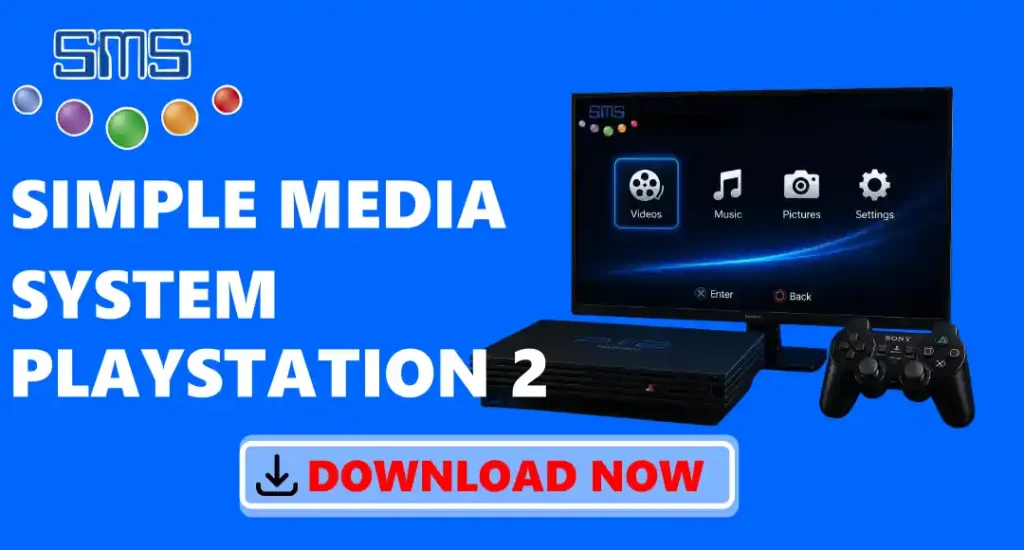
- Play video files: Watch movies, TV shows, and other video clips on your PlayStation 2. This player supports popular video formats like AVI, DivX, XviD, MPEG-1, and MPEG-2.
- Play audio files: Listen to your favourite songs and audio files on your PS2. It supports music formats like MP3, MP2, OGG Vorbis, WAV, FLAC, and AAC, so you can enjoy high-quality music playback through your console.
- Image files: Open and view your photos on a bigger screen using your PS2. It supports image formats like JPG (JPEG), PNG, and BMP, allowing you to browse your saved pictures easily.
- USB drive support: Connect a USB flash drive to your PS2 and play your saved videos, music, and photos directly from the device. This makes it easy to transfer and access your media files without using discs.
- CD/DVD playback: Play supported media files stored on CDs and DVDs. It allows you to use your PS2 disc drive to watch videos, listen to music, and view images saved on discs.
- Network support: Stream videos, music, and photos from your computer or another device connected to the same network. With SMB support, you can play files without copying them to a USB drive or PS2 storage.
- Subtitle support: Watch movies and videos with subtitle files such as SRT and SUB. This feature helps you understand videos in different languages or follow dialogues more easily.
- Playlist support: Create playlists to organise your favourite songs and play them continuously. You can arrange your music files in the order you prefer for a better listening experience.
- Audio and video settings: Adjust different playback options like volume, screen size, aspect ratio, and other settings to improve your watching and listening experience.
Why Use Simple Media System?
It helps you to run media like videos, music, and photos on your PlayStation 2. It supports many common file formats, including AVI, DivX, XviD, MPEG videos, MP3, FLAC, and JPG images. You can play your files from a USB drive, CD/DVD, PS2 hard drive (on supported models), or from a computer through a network connection. The app has a simple menu that makes it easy to find and play your media files. It also works with PS2 homebrew tools like Free McBoot, Open PS2 Loader (OPL), and uLaunchELF. It is free, lightweight, and easy to use; it is a good choice for turning an old PS2 into a basic media player.
Simple Media System System Requirements
- Console: PS2 console
- Homebrew Support: Free McBoot (FMCB), Open PS2 Loader (OPL), or uLaunchELF to run SMS
- Memory Card: PS2 memory card for storing homebrew files and settings
- Storage Device: USB flash drive, CD/DVD, internal HDD (supported models), or network storage
- Supported PS2 Models: Most PS2 Fat and Slim models with homebrew support
- Media Formats: AVI, DivX, XviD, MPEG, MP3, FLAC, JPG, and other supported file types
- Display: TV or monitor connected through AV, Component, or compatible PS2 video cables
Supported PS2 Consoles and Devices
It is made for the Sony PlayStation 2 and works with most PS2 consoles that can run homebrew apps. It supports different PS2 models and storage devices, allowing you to play videos, music, and photos from different sources.
- PlayStation 2 Fat Models: It works on most original PS2 Fat consoles. Some Fat models can also use an internal hard drive to store and play media files.
- PlayStation 2 Slim Models: SMS can run on PS2 Slim consoles if they support homebrew apps. You can use tools like Free McBoot to launch SMS on supported Slim models.
- PS2 Memory Card: A memory card is needed to store the files required to start SMS and save its settings.
- USB Flash Drives: You can connect a USB drive to your PS2 and play supported videos, music, and image files stored on it.
- Internal PS2 Hard Drive: PS2 Fat models with an internal HDD can use SMS to access and play media files stored on the hard drive.
- CD/DVD Discs: The tool can open and play supported media files saved on CDs or DVDs using the PS2 disc drive.
- Homebrew Launchers: It can be started with PS2 homebrew tools like Free McBoot (FMCB), Open PS2 Loader (OPL), and uLaunchELF.
How to Download Simple Media System?
- Click the Download button below to start downloading the SMS file.
- Wait until the download is complete and save the file on your device.
- Open the downloaded file from your Downloads folder.
- Copy the SMS.ELF file to your USB drive, PS2 memory card, or another supported storage device.
- Connect the storage device to your PS2 and open Simple Media System using a homebrew launcher like Free McBoot, Open PS2 Loader, or uLaunchELF.
How to Install Simple Media System on PS2?
- Open the downloaded file on your computer
- Extract the files if the download comes in ZIP or RAR format
- Copy the SMS.ELF file to your USB drive, PS2 memory card, or supported storage device
- Connect the storage device to your PS2 and open your homebrew launcher like FreeMCBoot ( IF NOT INSTALLED, DOWNLOAD FREEMCBOOT)
- Select the SMS.ELF file from the menu to start the installation process
- Wait until Simple Media System loads completely on your PS2
- You can now use Simple Media System to watch videos, listen to music, and view photos on your PS2
How to Use Simple Media System?
This tool is easy to use and has a simple menu that anyone can understand. You can quickly find your videos, music, or photos and start playing them. You can also change settings like the screen size, sound, and subtitles to match your needs. Follow the steps below to learn how to use Simple Media System on your PlayStation 2:-
- Open Simple Media System using a homebrew launcher like Free McBoot (FMCB), Open PS2 Loader (OPL), or uLaunchELF. ( IF NOT INSTALLED, DOWNLOAD FREEMCBOOT)
- Connect your USB drive, CD/DVD, or other storage device if your videos, music, or photos are saved on it.
- Select the storage device from the SMS menu where your media files are stored.
- Open the folder that contains the video, music, or photo you want to use.
- Choose the file and press the X button on your PS2 controller to open and play it.
- Use your PS2 controller to play, pause, stop, fast-forward, rewind, or change to the next file.
- Change the settings if you want to adjust the volume, screen size, subtitles, or other playback options.
- Go back to the main menu whenever you want to open another video, song, or photo.
Supported Audio and Video Formats
- Video Formats: AVI, DivX, XviD, MPEG-1, MPEG-2, and other supported AVI-based video files.
- Audio Formats: MP3, MP2, OGG Vorbis, WAV, FLAC, AAC, and AC3 audio.
- Image Formats: JPG (JPEG), PNG, and BMP image files.
- Subtitle Formats: SRT and SUB subtitle files for supported videos.
- Playlist Formats: M3U playlists for organising and playing multiple music files.
Simple Media System Settings and Customisation
- Display Settings: Change how the menus and file list appear on your TV screen.
- Network Settings: Set up SMB to play media files from a shared folder on your computer.
- Save Settings: Save your changes so SMS uses the same settings the next time you open it.
- Video Settings: Change the screen size, aspect ratio, brightness, and other video options.
- Audio Settings: Adjust the volume and other sound settings for better audio quality.
- Subtitle Settings: Turn subtitles on or off and change subtitle options while watching videos.
- Playback Settings: Play, pause, stop, fast-forward, rewind, repeat, or shuffle your media files.
- Storage Settings: Choose whether to open files from a USB drive, CD/DVD, internal HDD, or a network folder.
Pros and Cons of Simple Media System
Pros:
- Allows you to watch videos, listen to music, and view photos on your PlayStation 2.
- It supports many common file formats like AVI, DivX, XviD, MPEG, MP3, FLAC, and JPG.
- You can play files from a USB drive, CD/DVD, PS2 hard drive, or a shared folder on your local network.
- It has a simple menu that is easy to use, even for beginners.
- Supports subtitles, playlists, and different audio and video settings.
- Completely free to download and use.
- Works on most PS2 Fat and Slim consoles that support homebrew apps.
Cons:
- It only works on PS2 consoles that can run homebrew apps.
- Some new video and audio file formats are not supported.
- Setting up media streaming over a network can be a little difficult for new users.
Is Simple Media System Safe to Use?
Yes, it is safe to use if you download it from a trusted website like ours. It is a popular app that has been used by PlayStation 2 users for many years. The app is made to play videos, music, and photos on your PS2 and does not include ads or harmful software. Your PS2 must be able to run homebrew apps with tools like Free McBoot, Open PS2 Loader, or uLaunchELF to run this tool. For better safety, always download the latest version from our website. Do not download it from unknown websites because the files may not be safe.
Troubleshoots
- The application is not opening: Make sure your PS2 has Free McBoot (FMCB), Open PS2 Loader (OPL), or uLaunchELF installed. Also check that the SMS.ELF file is copied correctly and is not broken.
- USB drive is not detected: Check that your USB drive is formatted in FAT32 format. Remove and reconnect the USB drive, or try another USB port if SMS cannot find it.
- SMS.ELF file is not found: Make sure the SMS.ELF file is copied to your USB drive or memory card correctly. Open the storage device using uLaunchELF and check if the file is available.
- Free McBoot menu does not appear: Make sure the Free McBoot memory card is inserted properly before turning on your PS2. Also check that the memory card is working correctly.
- SMS shows a black screen: The SMS file may be damaged or not downloaded properly. Download the file again and replace the old SMS.ELF file.
- Media files are not showing: Check that your videos, music, and photos are saved in formats supported by SMS. Also make sure your storage device is connected properly.
- Videos are not playing: Check that your video file uses a supported format like AVI, DivX, XviD, or MPEG. Some new video formats may not work with SMS.
- No sound during playback: Check your PS2 audio settings and make sure the audio file format is supported by SMS, such as MP3, WAV, FLAC, or AC3.
- Subtitles are not showing: Make sure your subtitle file is in a supported format like SRT or SUB and is saved in the same folder as the video. Also check that subtitles are enabled in SMS settings.
- Screen size is not correct: Open the SMS video settings and adjust the screen size, aspect ratio, or display options to match your TV.
- PS2 cannot read USB files: Make sure your USB drive is formatted correctly, and your files are copied properly. Try using another USB drive if the problem continues.
- Controller is not working: Restart your PS2 and connect the controller properly before opening the application.
- Video or audio quality is poor: Use supported media files and adjust the video and audio settings in SMS for better playback.
Conclusion
It is a free and easy-to-use media player for the PlayStation 2. It lets you watch videos, listen to music, and view photos on your PS2. The app supports many common file formats and can play files from a USB drive, CD/DVD, PS2 hard drive, or a shared folder on your local network. It also includes useful features like subtitle support, playlists, and simple playback settings. If your PS2 can run homebrew apps, this tool is a great way to turn your console into a simple media player.